
How to Copy ChatGPT Math Equations to Word Without Losing Formatting
Quick answer: Use raw LaTeX in Word’s equation editor for one formula, or export a ChatGPT conversation to DOCX with Stashkin. Supported formulas become editable Word equations; check complex notation in your Word version.
Copy LaTeX into Word’s equation editor
Get the formula’s LaTeX source
Ask ChatGPT for the same equation as raw LaTeX in a code block. Copy only the formula, without code fences or surrounding math delimiters, and compare it with the original.
Insert a Word equation and select LaTeX
In a compatible desktop Microsoft 365 Word version, choose Insert → Equation and select LaTeX input. On Windows, Alt+= can insert an equation. Controls vary by version.
Convert and check editability
Paste inside the equation area and convert to Professional format. Change a numerator or exponent, then undo. If LaTeX remains plain text, check the input format and try again.
Handle pictures and complex notation
A pasted picture is not an editable equation. Custom macros and some commands need adjustment, and support varies by Word version. For many formulas, export the reply or conversation to Word with Stashkin and review the result. The free LaTeX tool is also available below.
Export a conversation with Stashkin
- 1
Add Stashkin to Chrome
Install it from the Chrome Web Store. No account needed.
- 2
Click Export beside the reply with the formulas
Or click the Stashkin icon to export the whole chat, only ChatGPT's replies, or the messages you select.
- 3
Choose Word
The DOCX downloads with each formula as a Word equation, ready for Word's equation editor.

Download an export sample
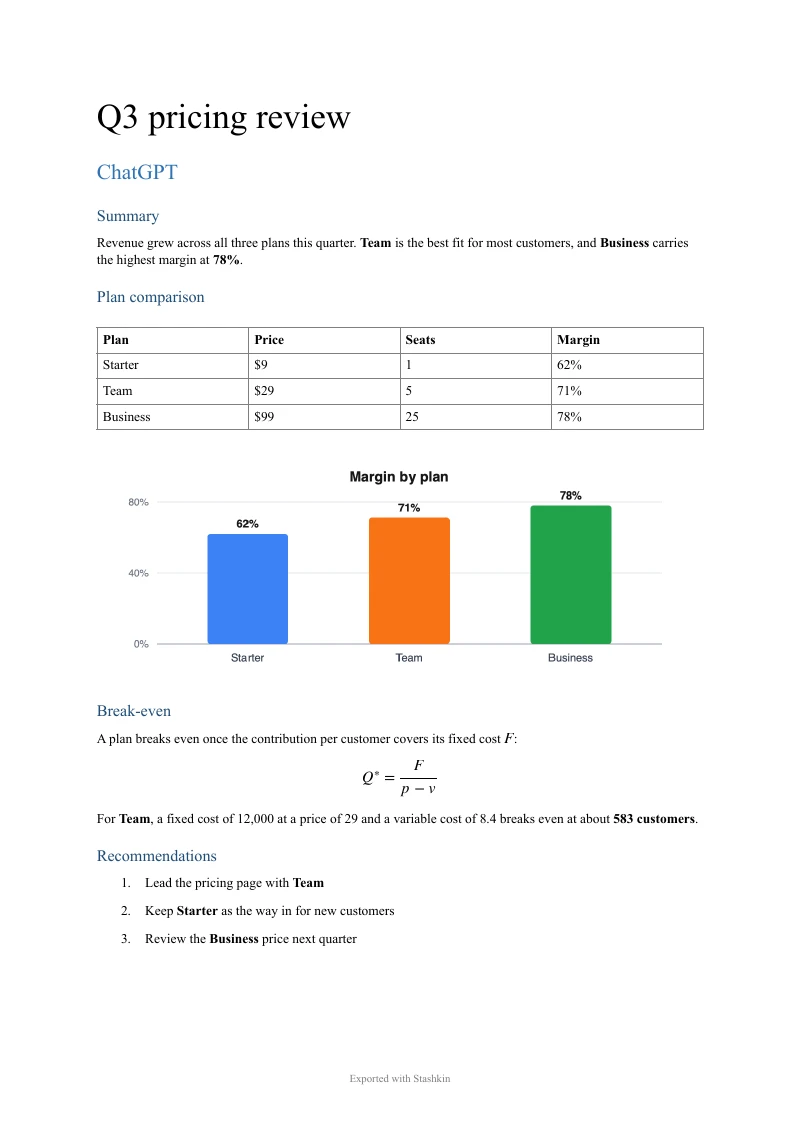
A real ChatGPT reply with a summary, a table, a chart, an equation and a numbered list, exported with Stashkin using “ChatGPT replies only”. Download the files and see the result for yourself.
In Word, the table and the equation stay editable, and the chart sits where ChatGPT put it.
What is preserved
Supported formulas as editable Word equations
Inline formulas inside their sentence, display formulas centred on their own line
Fractions, roots, sums, integrals and limits
Matrices, cases and aligned multi-line equations
Greek letters, subscripts, superscripts and accents
The text, tables and code around the formulas, as in the reply
Frequently asked questions
Use raw LaTeX in Word’s equation editor for one formula, or export a ChatGPT conversation to DOCX with Stashkin. Supported formulas become editable Word equations; check complex notation in your Word version.
Yes. Click the Export button beside that reply and choose Word; only that reply goes into the document.
Paste inside the equation area and convert to Professional format. Change a numerator or exponent, then undo. If LaTeX remains plain text, check the input format and try again.
The DOCX opens in Google Docs, LibreOffice and Pages too, but each converts Word equations in its own way, so a complex formula can look different there. Microsoft Word on Windows, Mac and the web keeps them as written.
Yes. Export the same reply to Markdown and every formula stays as LaTeX between dollar signs, ready for Overleaf, Obsidian or a .tex file.
Paste it into the free converter: one equation per line in, a DOCX of editable Word equations out, built in your browser. LaTeX to Word converter
More export guides
Try it on your next chat
Made for students, researchers and professionals who live in ChatGPT.
 Add to Chrome