

How to Save a ChatGPT Answer as a PNG Image
By Stashkin ·
To save a ChatGPT answer as a PNG, open the Stashkin export menu beside the completed answer and choose Image. Chrome downloads a rendered image of that answer. You can then insert it into a slide or attach it to a message.
PNG works well when the reader needs to see the layout. Choose Word or Markdown when they need to edit the content or copy code.
In this article
Save one answer as an image
Open the answer in Chrome
Install Stashkin, refresh the ChatGPT tab and open a saved conversation. Wait until the answer has finished and ChatGPT’s action controls appear beneath it.
Open the answer’s Stashkin menu
Find Stashkin’s export control beside ChatGPT’s Copy control under that answer. Open it and choose Image. The menu uses the label Image for PNG export.
Open and inspect the PNG
Check that the top and bottom of the answer are present. Zoom in to check formulas, code and table text before placing the image in a slide or sharing it.
Choose a smaller selection for a readable image
The menu under an answer exports that answer. To include prompts or multiple answers, open the Stashkin popup, choose the whole conversation or assistant replies only, then choose Image. Select messages lets you choose a smaller group.
A long conversation can produce a tall image that is hard to read in a slide or messaging app. Export a single answer, or split your selection into several images. For a long printable document, use PDF and check its page breaks.
Choose between a screenshot and an exported image
Use your computer’s screenshot tool if you need to show the ChatGPT interface, an error message or the exact state of the page. Crop or cover private information before sharing it.
Use Stashkin’s Image export when you need the selected answer as a document image. Stashkin lays out the content for export, so the fonts, spacing and width can differ from the ChatGPT page.
PNG stores pixels. You cannot edit a formula as a Word equation, sort a table or select code as text inside the image. Keep a Word or Markdown copy when you also need an editable version.
Check images and long answers before sharing
Open the downloaded file rather than relying on the small preview in a messaging app. Check wide tables and code lines at full size. If an image from the conversation is missing, confirm that you can still open it in ChatGPT, then retry the export.
For a failed or oversized export, try one shorter answer first. If it still fails, send support the browser version and the error message. Share an example that reproduces the problem without including private information.
Inspect the sample
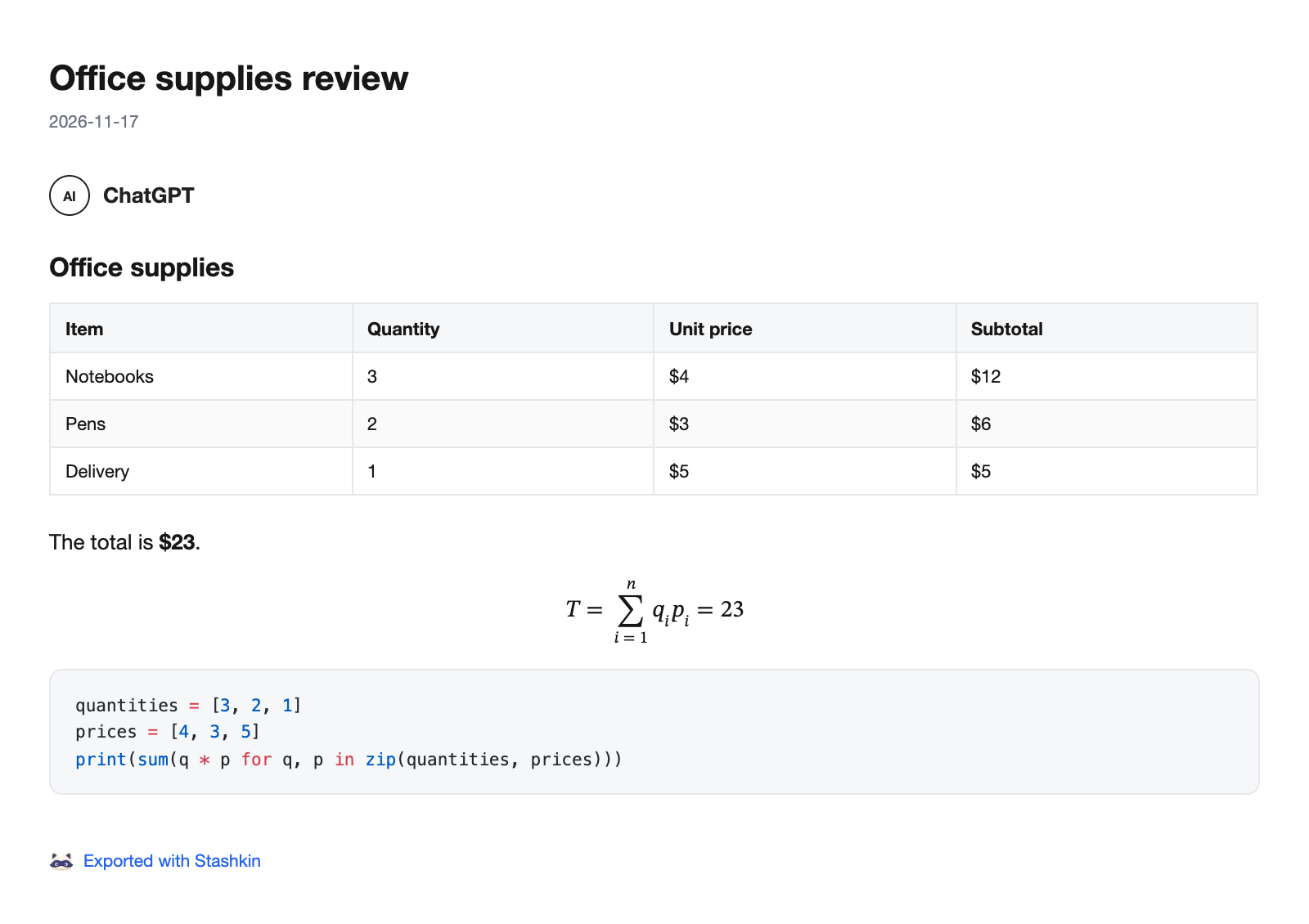
This PNG was exported with Stashkin from a fictional ChatGPT answer containing a table, an equation and a code block. Open the full image to inspect the output.
Export the open conversation with Stashkin
Choose one answer, selected messages, assistant replies only or the whole conversation. Export to Word, PDF, Markdown, TXT, PNG or JSON.